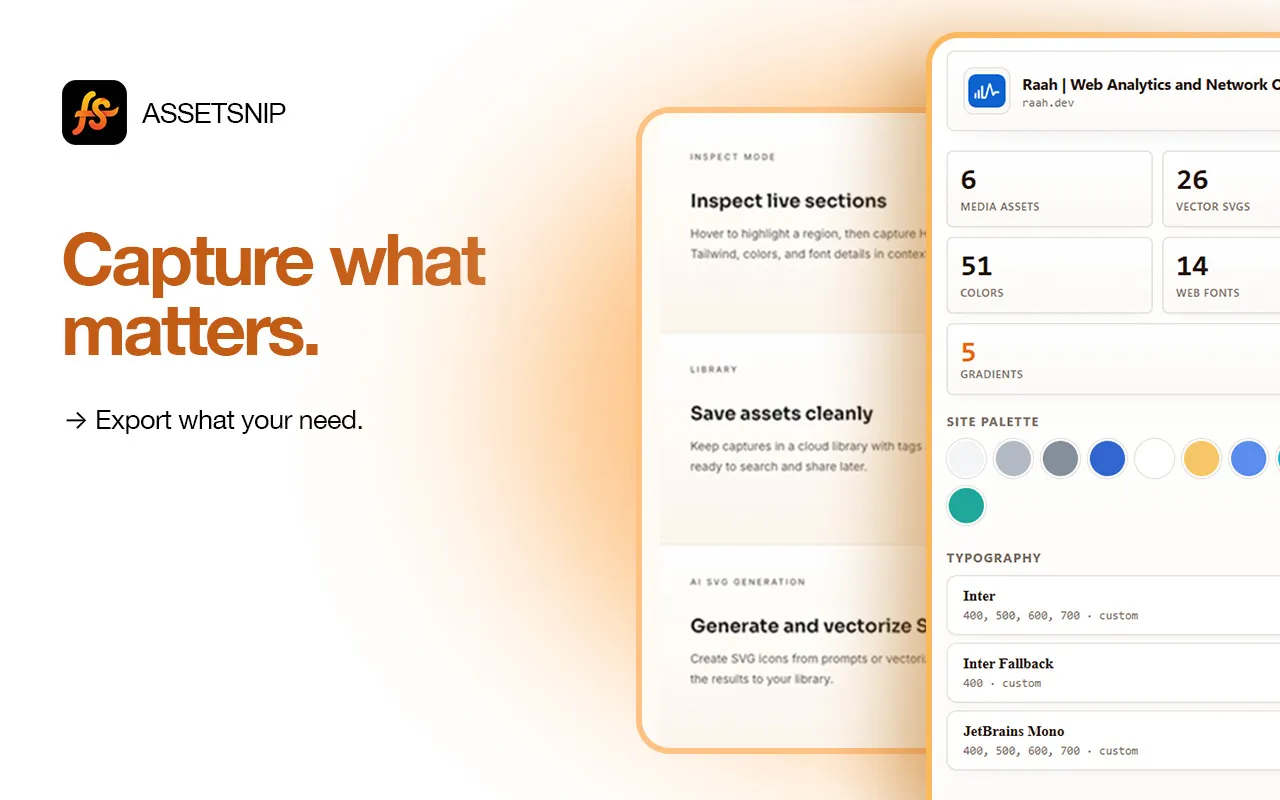
Today, we are introducing AssetSnip, a website asset extractor for designers and developers who need a faster way to capture reusable design references from live websites.
Most design research starts with a page that looks right: the palette works, the typography feels balanced, the icons are sharp, and the motion or layout gives you an idea worth saving. But screenshots only capture the surface, and DevTools turns a simple reference task into a hunt across markup, computed styles, network files, and downloads.
AssetSnip brings that work into one flow. Open the Chrome side panel, extract the assets and design values behind the page, and save the useful parts into a web dashboard you can organize by project, client, sprint, or idea.
The goal is simple: help teams move from scattered screenshots and one-off downloads to a reusable design asset library.
Why we built AssetSnip
Design inspiration is everywhere, but reusable design information is usually fragmented.
You may know a page uses a great gradient, but not the exact CSS value. You may like an icon set, but the SVGs are buried inline. You may want to study a hero section, but rebuilding the spacing, typography, and markup means jumping between the Elements panel, Styles panel, screenshots, notes, and downloads.
AssetSnip is built around a practical belief: designers and developers should be able to capture the real assets behind a website while the reference is still fresh.
That means more than downloading an image. It means collecting the colors, fonts, SVGs, gradients, animations, media, and code-oriented section references that explain why a page works.
What AssetSnip gives you
AssetSnip starts with the questions designers and frontend teams ask during research:
- What colors, gradients, and fonts does this page actually use?
- Which SVGs, images, videos, GIFs, or Lottie files are available in the browser?
- Can I save the useful parts with the source URL attached?
- Can I inspect one section instead of the entire page?
- Can I turn a visual reference into HTML, CSS, Tailwind-style markup, or a React-style starting point?
- Can I organize everything instead of losing it in screenshots and downloads?
Instead of spreading those answers across several tools, AssetSnip puts them in one extension and dashboard workflow.
Extract website assets from the Chrome side panel
AssetSnip runs as a Chrome side-panel extension. Open it on the website you are studying and it scans the live page for common asset types and reusable design details.
You can review, copy, download, or save:
- Images in PNG, JPG, WebP, and AVIF formats
- SVGs, including inline SVGs and icon sprites
- Videos and GIFs, including MP4 and WebM files
- Lottie JSON animation files
- Colors from computed styles, including HEX, RGB, and HSL values
- CSS gradients as copy-ready strings
- Fonts with family, weight, and size data
This is useful for design audits, competitive research, frontend rebuilds, moodboards, and design system references where the actual values matter more than a screenshot.
Inspect sections for code-ready references
Sometimes the asset list is not enough. You may want to study one pricing card, hero section, footer, navigation bar, testimonial block, or component pattern.
Inspect mode lets you hover over a live page, select a region, and capture the selected subtree. From there, AssetSnip can generate practical references such as:
- Clean HTML markup
- CSS with computed values
- Tailwind-style class HTML
- A
tailwind.configtheme snippet - A React-style component string
- A CodePen-friendly capture for quick testing
The output depends on what the page exposes. Shadow-heavy, highly dynamic, or heavily obfuscated sites may produce lighter results. On typical marketing pages, SaaS pages, portfolios, docs sites, and component galleries, Inspect mode gives you a faster starting point than rebuilding the reference by hand.
A library for design references, not just downloads
Capturing an asset once is helpful. Finding it again later is where the workflow starts to compound.
Every saved item lands in your AssetSnip dashboard with its source URL attached. From the web app, you can filter by asset type, add tags, create folders, download individual assets, and run bulk ZIP exports on paid plans.
That makes AssetSnip useful beyond a single browsing session. A frontend developer can keep implementation references close to code work. A designer can group competitive research by visual direction. A freelancer or agency can keep client research separated. A design system team can compare typography, color, gradient, and icon choices across real products.
AI SVG icons when the reference is not enough
AssetSnip also includes an AI SVG tool in the dashboard. You can generate a new SVG icon from a text prompt or upload a raster image and convert it into a vector-style SVG.
Generated icons save into the same library as captured website assets, so they can live alongside the references that inspired them. AI generation is metered on paid plans and is intentionally focused on SVG icon creation and image-to-vector conversion.
Built for designers, developers, and small teams
AssetSnip is designed for people who regularly turn live websites into product, design, or frontend decisions:
- Frontend developers rebuilding UI patterns, prototyping sections, or collecting implementation references
- UI and UX designers studying real palettes, typography, gradients, icons, and motion assets
- Freelancers and agencies organizing research across multiple clients and projects
- Design system teams benchmarking visual patterns from real products
- Founders and product teams collecting references before a redesign or landing page iteration
You can start small with the free plan, which includes 10 downloads per month, 10 saved items, and limited Inspect and gradient exports. Paid plans start at $12/month and unlock higher limits, AI icon credits, folders, and bulk ZIP exports. See the pricing page for the latest plan details.
What AssetSnip does not do
AssetSnip is focused on practical website asset extraction and reference management. It is not a Figma plugin, a visual regression tool, or an automatic whole-site crawler. You work page by page through the Chrome side panel and choose what is worth saving.
The AI feature is also scoped to SVG icons. It does not generate full wireframes, complete layouts, or finished design-to-code screens.
Getting started
- Visit the AssetSnip home page and install the Chrome extension.
- Sign in so captured assets can sync to your web dashboard.
- Open a website you want to study.
- Launch the AssetSnip side panel and review the detected assets.
- Use Inspect mode when you want section-level HTML, CSS, Tailwind, or React-style references.
- Save useful assets, then organize them with tags and folders.
AssetSnip was built to make design research more useful than a screenshot and faster than manual inspection. Install the extension, capture your first page, and start building a reusable library of the website assets and design references that matter to your workflow.